Report #1 roll update instructions for RPSV4 users
To update your roll file to reflect the Current status from the report:
- Run the STAR Exemption Update Utility to update the properties that do not match the STAR exemption on your roll file.
- Manually update those properties that:
- have no exemption on the roll file or a STAR credit marker,
- may be manufactured housing and co-ops, or
- have multiple STAR exemptions.
If a property is listed on the report as eligible but you’re aware that it’s not eligible due to age, ownership, or residency:
- update the roll based on your determination, and
- follow the instructions on How to submit STAR report changes so ORPTS can update its records.
If you believe the property is eligible for the Enhanced STAR exemption, grant the exemption on the tentative assessment roll. The Tentative Assessment Roll Corrections Report will include the Tax Department’s determination for the property.
Upon completion, exemptions and taxable values within the municipality will automatically be updated.
Before running the utility, you must:
- export the RPS Bulk File for report #1,
- back up your database, and
- install all RPS software release updates (available in the Online Assessment Community).
Note: Exemptions with an initial year equal to or greater than the current roll year will not be acted on in this update; these parcels need to be reviewed at the parcel level to determine if the exemption should be removed.
| Exemption status on the assessment roll file | Tax Department determination | Result after running the RPSV4 utility | Assessor action |
|---|---|---|---|
| Enhanced STAR exemption | Eligible for the Enhanced STAR exemption | The assessment roll record will continue to include the Enhanced STAR exemption | No action required |
| Enhanced STAR exemption | Eligible for the Basic STAR exemption | Utility applies the Basic STAR exemption to the roll record | No action necessary; the utility will programmatically update the roll |
| Enhanced STAR exemption | Not eligible for the Basic or Enhanced STAR exemption | Utility removes the STAR exemption | No action necessary; the utility will programmatically update the roll |
| Basic STAR exemption | Eligible for the Enhanced STAR exemption | Utility applies the Enhanced STAR exemption to the roll record | No action necessary; the utility will programmatically update the roll |
| Basic STAR exemption | Eligible for the Basic STAR exemption | The assessment roll record will continue to include the Basic STAR exemption | No action required |
| Basic STAR exemption | Not eligible for the Basic or Enhanced STAR exemption | Utility removes the STAR exemption | No action required |
| No STAR exemption | Eligible for the Enhanced STAR exemption | Property is listed on the discarded transactions report; assessment roll is not updated | Manually update the roll to include the Enhanced STAR exemption unless you're aware that the property is not eligible |
| No STAR exemption | Eligible for the Basic STAR exemption | Property is listed on the discarded transactions report; assessment roll is not updated | Manually update the roll to include the Basic STAR exemption unless you're aware that the property is not eligible |
| No STAR exemption | Not eligible for the Basic or Enhanced STAR exemption | The assessment roll record will not include a STAR exemption | No action required |
How to run the RPSV4 STAR Exemption Update utility
1. Select Administration on the Navigation Screen to open the Administrative Toolbar.
2. Select Update Programs button.
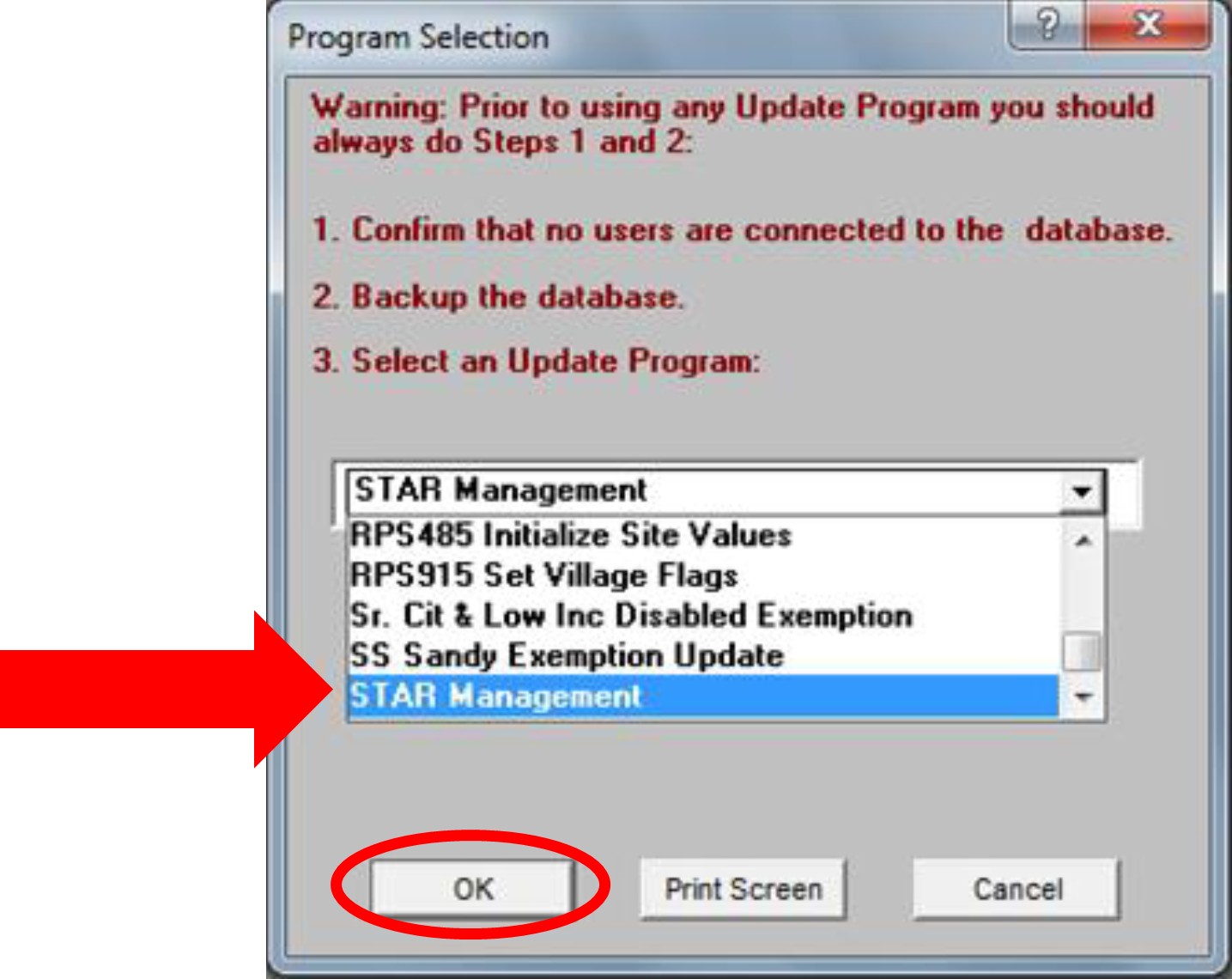
3. Scroll down and select STAR Management, and then select OK.
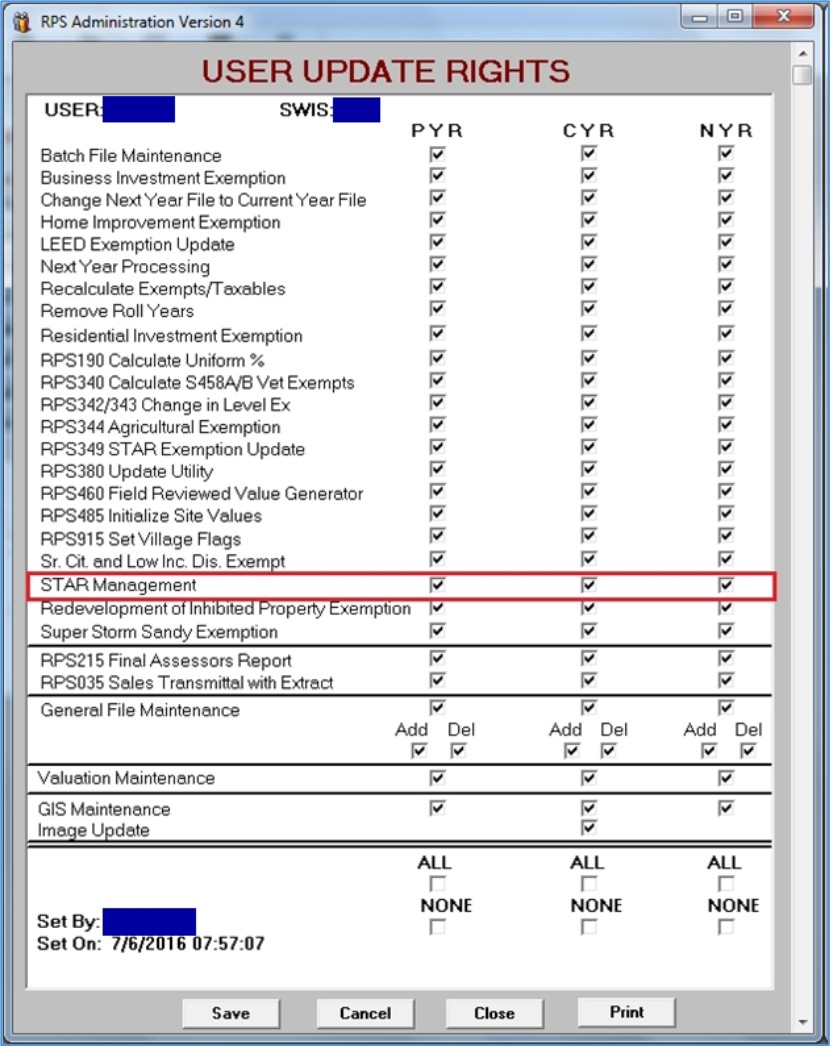
Note: If you do not see the STAR Management option, verify that your User Update Rights are set for STAR Management. You may need to check with your Security Group Administrator.
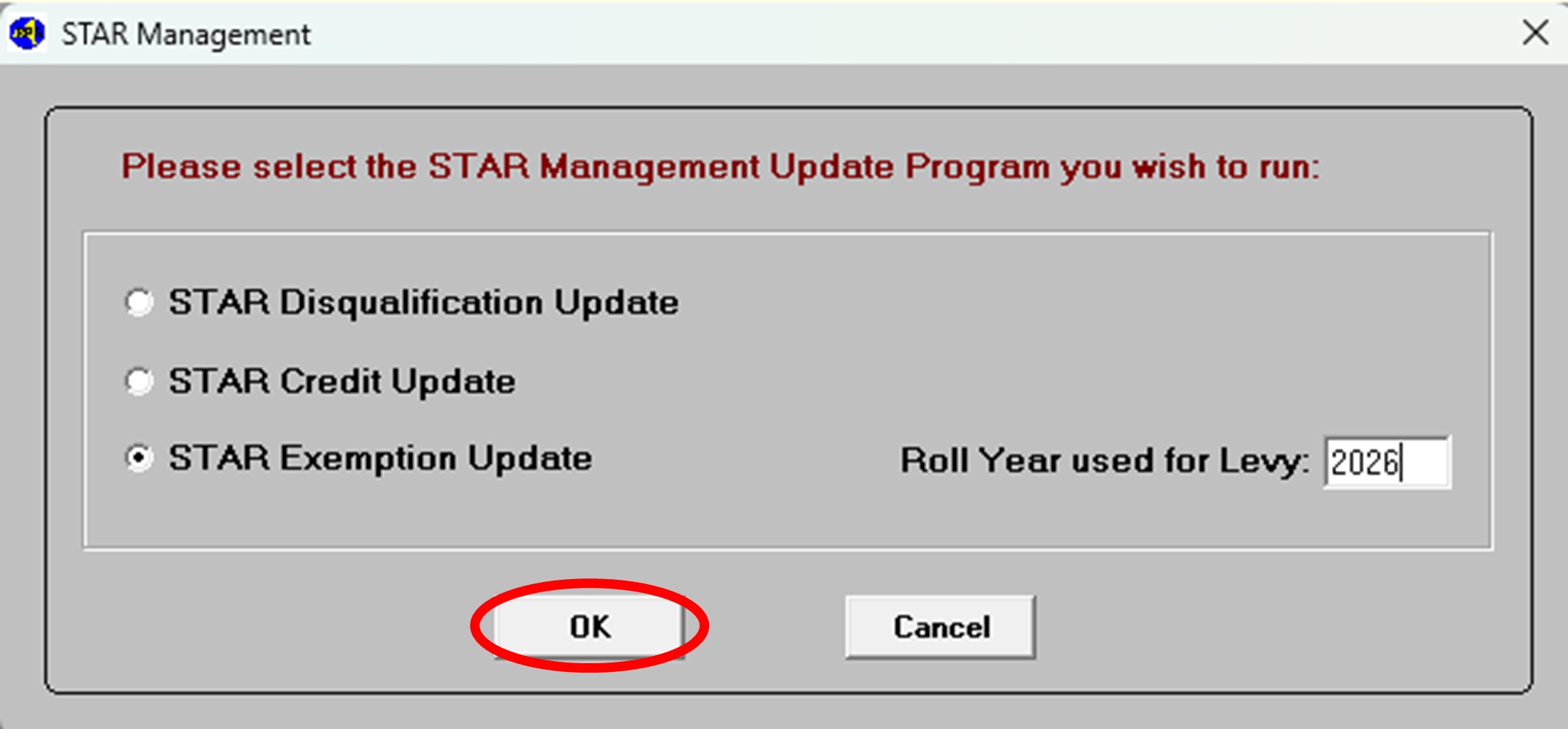
4. On the STAR Management screen, select STAR Exemption Update. Enter the roll year used for levy, then select OK.
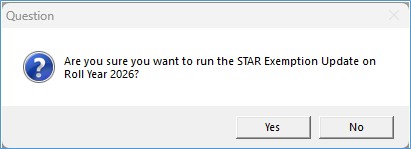
Select Yes to confirm or No to cancel.
5. On the Enhanced STAR Exemption Update Selection screen, select Import STAR File.
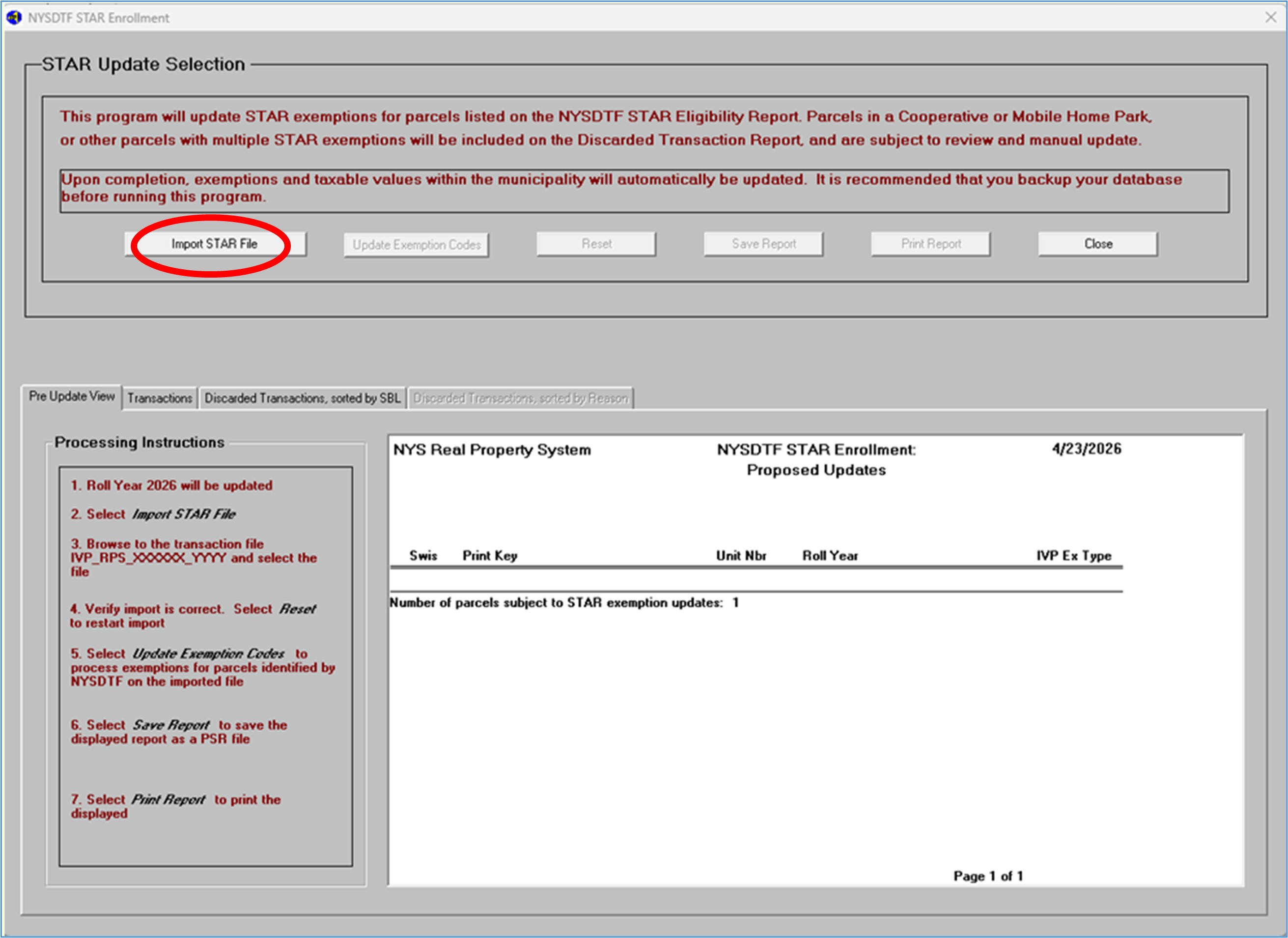
6. Browse to the location where you stored the RPS download transaction file. Select the file you want to import to highlight it and then, select Open.
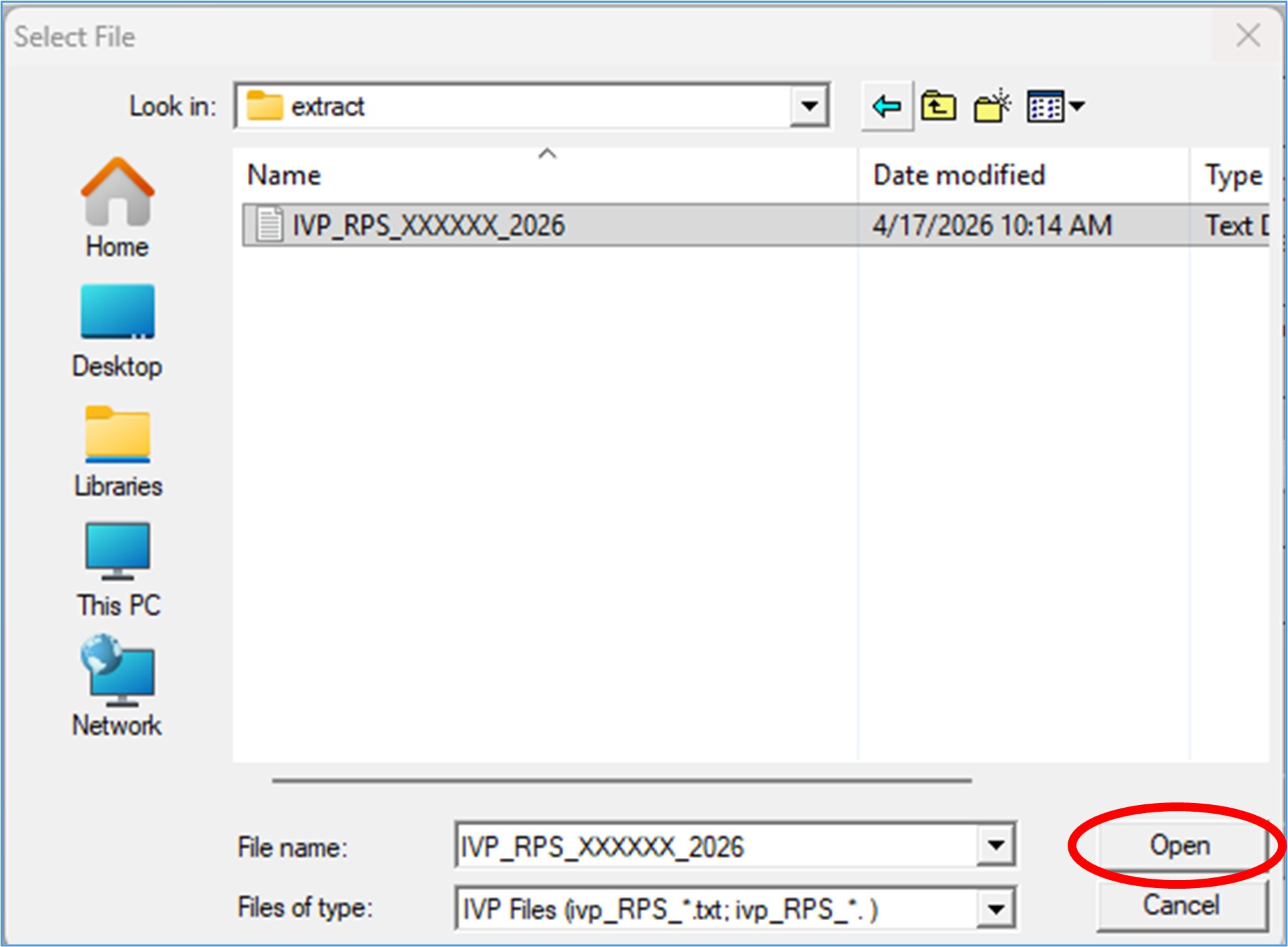
Note: After the file is imported, the contents of the file will appear on the Pre Update View screen. If there is more than one page, you must select OK to scroll through the preview list. The number of parcels in the file will be listed at the end. Selecting OK does not update any data, and if necessary, you may select Reset to choose a different file or close out of the program without consequence.
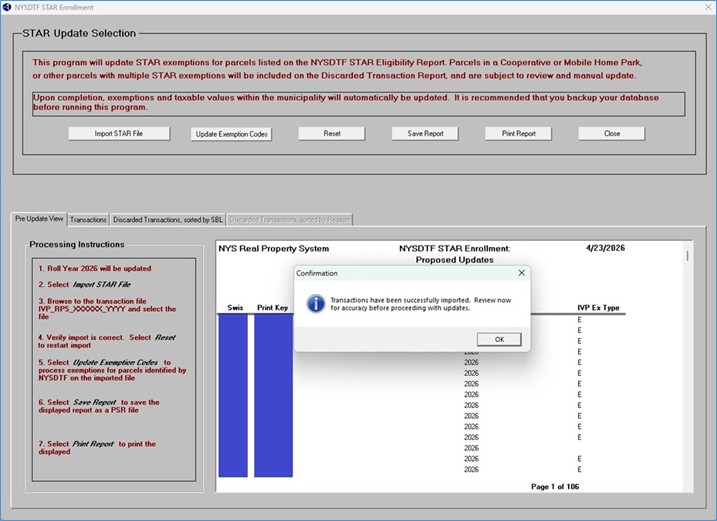
7. If the file appears correct, select OK on the confirmation message:
- After clicking OK, you will have access to scroll through the report. At this point the report can be printed and/or saved. You should print and/or save the report as a PSR file because it will no longer be available after you close the utility.
- If the file does not appear correct, X out of the confirmation message and go back to Import STAR IVP File and select the correct file. If you continue to have an issue, contact your ORPTS customer service liaison.
Note: It is recommended that you backup your database before running this program (the next step).
8. When ready to update the database, select Update Exemption Codes button to update the database:
- This update program will automatically run a recalculation of taxable values for all parcels in the municipality. The program can take from five to thirty-five minutes depending on the size of the municipality.
- Once processing is complete, a report of updated exemptions will display on the Transactions tab. You should print and/or save the report as a PSR file because it will no longer be available after you close the utility.
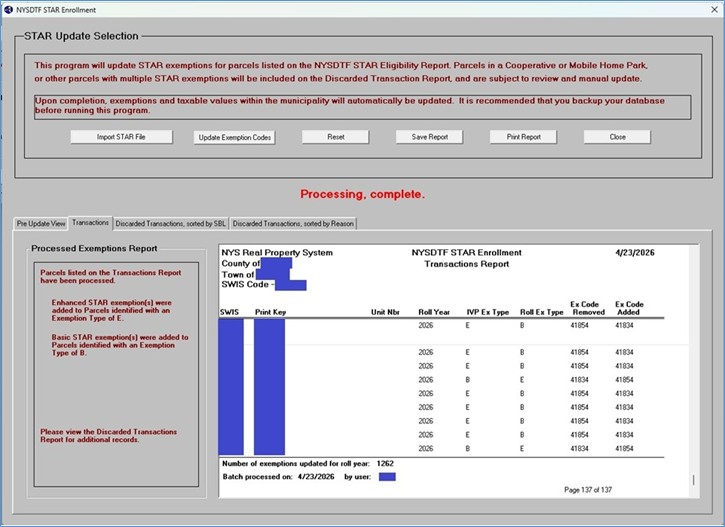
If a parcel listed on the imported transaction file did not have the exemption removed, upgraded, or downgraded this parcel will be listed on the Discarded Transactions report along with the reason why no action was taken. This report comes sorted by SBL and sorted by Reason.
This report can also be printed and/or saved as a PSR file.
You should print and/or save all of the reports as a PSR file before closing. If you close the utility without saving them, they will no longer be available.
If you will be processing another file for another municipality, select the Reset button; this will clear all reports and initialize the program so you may import the next file.
Discarded Transactions report
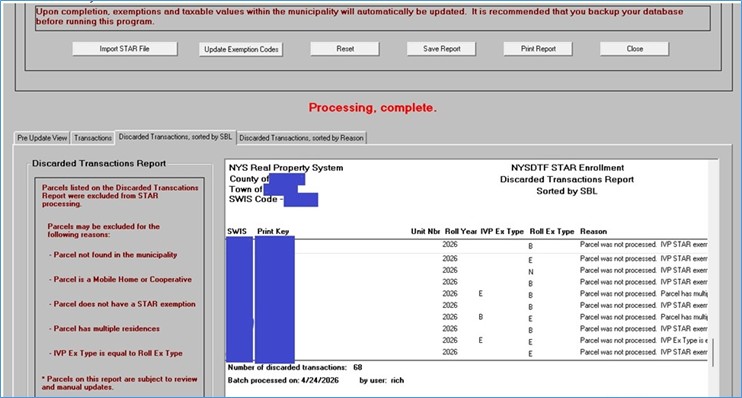
Parcels listed on the imported transaction file that did not have the exemption updated are sorted in two separate ways: SBL and Reason. To view either list, select Discarded Transactions, sorted by SBL tab or Discarded Transactions, sorted by Reason tab.
Parcels on the Discarded Transactions report with any of the reasons below should be reviewed and manually updated if appropriate:
- If a parcel listed on the imported transaction file is a cooperative building (owner code=P or Q), a mobile home park (property416) or manufactured housing (property270 or 271), no action will be taken and the parcel will be listed on the Discarded Transactions report. The following message will display in the Reason column:
- Parcel was not processed. Mobile Home or Cooperative transaction.
- If a parcel listed on the imported transaction file already matches to the exemption type on the roll, no action will be taken and the parcel will be listed on the Discarded Transactions report. The following message will display in the Reason column:
- Parcel was not processed. IVP Ex Type is equal to Roll Ex Type.
- If a parcel listed on the imported transaction file has either no STAR exemption, or a STAR credit marker (88888 or 99999), no action will be taken and the parcel will be listed on the Discarded Transactions report. One of the following messages will be displayed in the Reason column:
- Parcel was not processed. Roll Ex Type is blank.
- If a parcel listed on the imported transaction file has multiple residences (property280 or 281), no action will be taken and the parcel will be listed on the Discarded Transactions report. The following message will display in the Reason column:
- Parcel was not processed. Parcel has multiple residences.
- If a parcel listed on the imported transaction file is not found, no action will be taken and the parcel will be listed on the Discarded Transactions report. The following message will display in the Reason column:
- Parcel not found in municipality.