Respond to a letter requesting additional information
Respond to a letter requesting additional information
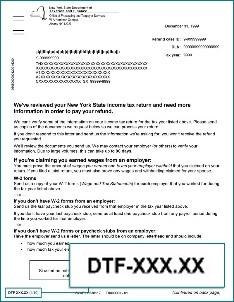
If you receive a letter asking for missing information or documentation to support what you claimed on your return, respond by the date on your letter so we can continue processing your return. To identify the letter you received, locate the form number in its bottom-left corner.
Already responded? Learn what happens next.
Request for Information letters (Form DTF-948 or DTF-948-O)
The primary letter we use to request information about a return is Form DTF-948 or DTF-948-O, Request for Information (RFI). If your refund status says we sent you one of these letters, it's important you respond by the date noted on the letter so we can continue processing your return.
For screen-by-screen instructions on responding to your RFI letter online:
- review our Respond to RFI: walkthrough, and
- watch our Respond to RFI (DTF-948 or 948-O) demo.
Details about RFI
Why you may have received an RFI letter
Common reasons we send RFI letters include:
- We need to verify you reported the correct amount of wages and withholding for New York State, New York City, and Yonkers (see Checklist for acceptable proof of wages and withholding).
- We need to verify you lived or worked in New York State, New York City, or Yonkers.
- You claimed a credit or tax benefit, and we did not receive a copy of the form with your tax return. (We need a copy of the form to review the credit you are claiming.)
- We need to verify your eligibility for the tax credits or itemized deductions you claimed.
- You claimed a dependent deduction and we need to verify the dependent's Social Security number or date of birth (see Checklist for acceptable proof of a child or dependent).
- We need information to verify the rental real estate income or loss you claimed.
- We need to verify information about income or loss for a partnership, S corporation, or trust.
Where to view your RFI letter online
If you received an RFI letter in the mail, you can view a copy of it in your Individual Online Services account in your Document Summary, as well as any other documents we sent you within the last three years. This means you can access a copy of your letter before it arrives in the mail and respond sooner.
For a complete list of the notices you can see in Online Services, see Notices available in your Online Services Document Summary.
How to respond to an RFI letter
1. Review our checklists to ensure you include everything we need in your response:
- Checklist for proof of wages and withholding
- Checklist for acceptable proof of child or dependent care expenses
- Checklist for acceptable proof of child and dependent relationship
- Checklist for acceptable proof of college tuition expenses
- Checklist for acceptable proof of itemized deductions
- Checklist for acceptable proof of self-employment income
- Checklist for acceptable proof of business loss
- Checklist for acceptable proof of rental loss
- Checklist for acceptable proof of taxi, limousine, or self-employed driver income and expenses
2. Gather the documents we requested.
If your letter included a questionnaire and you need additional sheets to complete your response, download an extra copy of Form AU-262.3, Nonresident Audit Questionnaire, or Form AU-262.55, Income Allocation Questionnaire.
3. Save all your documentation in the same place on your computer, so it’s easy to locate when you’re ready to upload.
You can upload one or more files with a combined total size of 50mb or fewer. We accept files with the following extensions: doc, docx, rtf, txt, xls, xlsx, xml, jpeg, jpg, bmp, gif, tif, tiff or pdf. We do not accept files with a zip extension. See Uploading a file: detailed instructions.
If you have paper documentation, you don’t need a scanner to make a digital copy:
- Take a picture of the documentation with your smartphone or tablet.
- Either save the picture to your smartphone or tablet, or email the picture to yourself to save to another device.
- Review the digital copy (picture) to ensure it’s clear and we can read all the words.
4. Be ready to provide the following information:
- your name;
- a daytime telephone number where we can reach you;
- your dependent’s Social Security number or date of birth, if requested; and
- the name and phone number of anyone we’re allowed to speak to about this specific response (not any other tax matters) on your behalf (note: in providing this information, you’re authorizing a third-party designee and will need to create a 5-digit PIN to provide to your designee so we can verify their identity if they call on your behalf).
5. Respond in your Individual Online Services account:
- Log in to or create your account.
- Select the ≡ Services menu, then choose Respond to department notice.
- From the Notices page, select your notice from the Quick response section.
- Use the Actions drop-down to view or respond to the notice you received:

Sample screen of Respond to Department Notice page
Other letters
Identify the form number of your letter in its bottom-left corner, then expand the row with your letter’s form number for instructions on responding online. For screen-by-screen instructions:
- review our Respond to Department Notice: walkthrough, and
- watch our Respond to a Department Notice demo.
If you received a form not listed below, see Respond to your notice or bill.
How to respond to another letter
DTF-160 or DTF-161 (adjustment notice)
If you received a letter telling you your refund was adjusted or denied (Form DTF-160 or DTF-161), see Your refund was adjusted.
DTF-960-E (Statement of Proposed Audit Change)
If you receive Form DTF-960-E, a review of your return has resulted in additional tax, penalty, or interest due. Please review our frequently asked questions before calling for assistance.
I agree with the assessment. Where do I send the consent and payment?
Send your signed consent with payment and payment voucher to:
NYS ASSESSMENT RECEIVABLEPO BOX 4127
BINGHAMTON NY 13902-4127
I cannot pay in full by the due date. Can I make a payment arrangement online?
Yes, you may request an installment payment agreement (IPA) online.
I disagree with the assessment. How may I request a review of this notice?
To learn how to request a review of this notice, see the instructions on page 2 of your notice.
DTF-973.52 or DTF-973.73 (child or dependent)
Get ready to respond!
- Review both checklists about responding to your letter to ensure you include everything we need in your response.
- Gather the documents we requested.
- Save all your documentation in the same place on your computer, so it’s easy to locate when you’re ready to upload. If you have paper documentation, you don’t need a scanner to make a digital copy:
- Take a picture of the documentation with your smartphone or tablet.
- Either save the picture to your smartphone or tablet, or email the picture to yourself to save to another device.
- Review the digital copy (picture) to ensure it’s clear and we can read all the words.
You can upload one or more files with a combined total size of 50mb or fewer. We accept files with the following extensions: doc, docx, rtf, txt, xls, xlsx, xml, jpeg, jpg, bmp, gif, tif, tiff or pdf. We do not accept files with a zip extension. See Uploading a file: detailed instructions.
- Be ready to provide the following information:
- your name;
- a daytime telephone number where we can reach you;
- your dependent’s Social Security number or date of birth, if requested; and
- the name and phone number of anyone we’re allowed to speak to about this specific response (not any other tax matters) on your behalf (note: in providing this information, you’re authorizing a third-party designee and will need to create a 5-digit PIN to provide to your designee so we can verify their identity if they call on your behalf).
Ready to respond?
- Log in to or create your Online Services account.
- Select the ≡ Services menu, then choose Respond to department notice.
- From the Questionnaire page, in the Notice type section, select My return was selected for review or audit, as shown in the image below.
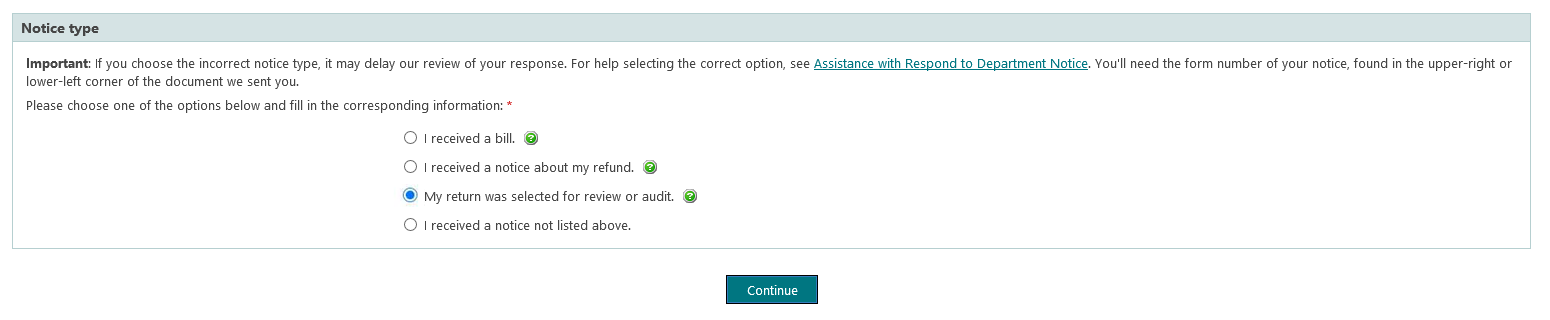
Sample screen of Respond to Department Notice page
DTF-973.52 or DTF-973.73 (college tuition)
Get ready to respond!
- Review our Checklist for acceptable proof of college tuition expenses to ensure you include everything we need in your response.
- Gather the documents we requested.
- Save all your documentation in the same place on your computer, so it’s easy to locate when you’re ready to upload. If you have paper documentation, you don’t need a scanner to make a digital copy:
- Take a picture of the documentation with your smartphone or tablet.
- Either save the picture to your smartphone or tablet, or email the picture to yourself to save to another device.
- Review the digital copy (picture) to ensure it’s clear and we can read all the words.
You can upload one or more files with a combined total size of 50mb or fewer. We accept files with the following extensions: doc, docx, rtf, txt, xls, xlsx, xml, jpeg, jpg, bmp, gif, tif, tiff or pdf. We do not accept files with a zip extension. See Uploading a file: detailed instructions.
- Be ready to provide the following information:
- your name;
- a daytime telephone number where we can reach you;
- your dependent’s Social Security number or date of birth, if requested; and
- the name and phone number of anyone we’re allowed to speak to about this specific response (not any other tax matters) on your behalf (note: in providing this information, you’re authorizing a third-party designee and will need to create a 5-digit PIN to provide to your designee so we can verify their identity if they call on your behalf).
Ready to respond?
- Log in to or create your Online Services account.
- Select the ≡ Services menu, then choose Respond to department notice.
- From the Questionnaire page, in the Notice type section, select My return was selected for review or audit, as shown in the image below.
Sample screen of Respond to Department Notice page
DTF-973.52 (self-employment income)
Get ready to respond!
- Review our Checklist for acceptable proof of self-employment income to ensure you include everything we need in your response.
- Gather the documents we requested.
- Save all your documentation in the same place on your computer, so it’s easy to locate when you’re ready to upload. If you have paper documentation, you don’t need a scanner to make a digital copy:
- Take a picture of the documentation with your smartphone or tablet.
- Either save the picture to your smartphone or tablet, or email the picture to yourself to save to another device.
- Review the digital copy (picture) to ensure it’s clear and we can read all the words.
You can upload one or more files with a combined total size of 50mb or fewer. We accept files with the following extensions: doc, docx, rtf, txt, xls, xlsx, xml, jpeg, jpg, bmp, gif, tif, tiff or pdf. We do not accept files with a zip extension. See Uploading a file: detailed instructions.
- Be ready to provide the following information:
- your name;
- a daytime telephone number where we can reach you;
- your dependent’s Social Security number or date of birth, if requested; and
- the name and phone number of anyone we’re allowed to speak to about this specific response (not any other tax matters) on your behalf (note: in providing this information, you’re authorizing a third-party designee and will need to create a 5-digit PIN to provide to your designee so we can verify their identity if they call on your behalf).
Ready to respond?
- Log in to or create your Online Services account.
- Select the ≡ Services menu, then choose Respond to department notice.
- From the Questionnaire page, in the Notice type section, select My return was selected for review or audit, as shown in the image below.
Sample screen of Respond to Department Notice page
DTF-973.73 (child and dependent care expenses)
Get ready to respond!
- Review both checklists about responding to your letter to ensure you include everything we need in your response.
- Gather the documents we requested.
- Save all your documentation in the same place on your computer, so it’s easy to locate when you’re ready to upload. If you have paper documentation, you don’t need a scanner to make a digital copy:
- Take a picture of the documentation with your smartphone or tablet.
- Either save the picture to your smartphone or tablet, or email the picture to yourself to save to another device.
- Review the digital copy (picture) to ensure it’s clear and we can read all the words.
You can upload one or more files with a combined total size of 50mb or fewer. We accept files with the following extensions: doc, docx, rtf, txt, xls, xlsx, xml, jpeg, jpg, bmp, gif, tif, tiff or pdf. We do not accept files with a zip extension. See Uploading a file: detailed instructions.
- Be ready to provide the following information:
- your name;
- a daytime telephone number where we can reach you;
- your dependent’s Social Security number or date of birth, if requested; and
- the name and phone number of anyone we’re allowed to speak to about this specific response (not any other tax matters) on your behalf (note: in providing this information, you’re authorizing a third-party designee and will need to create a 5-digit PIN to provide to your designee so we can verify their identity if they call on your behalf).
Ready to respond?
- Log in to or create your Online Services account.
- Select the ≡ Services menu, then choose Respond to department notice.
- From the Questionnaire page, in the Notice type section, select My return was selected for review or audit, as shown in the image below.
Sample screen of Respond to Department Notice page
DTF-973.66 (business loss)
Get ready to respond!
- Review our Checklist for acceptable proof of business loss to ensure you include everything we need in your response.
- Gather the documents we requested.
- Save all your documentation in the same place on your computer, so it’s easy to locate when you’re ready to upload. If you have paper documentation, you don’t need a scanner to make a digital copy:
- Take a picture of the documentation with your smartphone or tablet.
- Either save the picture to your smartphone or tablet, or email the picture to yourself to save to another device.
- Review the digital copy (picture) to ensure it’s clear and we can read all the words.
You can upload one or more files with a combined total size of 50mb or fewer. We accept files with the following extensions: doc, docx, rtf, txt, xls, xlsx, xml, jpeg, jpg, bmp, gif, tif, tiff or pdf. We do not accept files with a zip extension. See Uploading a file: detailed instructions.
- Be ready to provide the following information:
- your name;
- a daytime telephone number where we can reach you;
- your dependent’s Social Security number or date of birth, if requested; and
- the name and phone number of anyone we’re allowed to speak to about this specific response (not any other tax matters) on your behalf (note: in providing this information, you’re authorizing a third-party designee and will need to create a 5-digit PIN to provide to your designee so we can verify their identity if they call on your behalf).
Ready to respond?
- Log in to or create your Online Services account.
- Select the ≡ Services menu, then choose Respond to department notice.
- From the Questionnaire page, in the Notice type section, select My return was selected for review or audit, as shown in the image below.
Sample screen of Respond to Department Notice page
DTF-973.65 (rental loss)
Get ready to respond!
- Review our Checklist for acceptable proof of rental loss to ensure you include everything we need in your response.
- Gather the documents we requested.
- Save all your documentation in the same place on your computer, so it’s easy to locate when you’re ready to upload. If you have paper documentation, you don’t need a scanner to make a digital copy:
- Take a picture of the documentation with your smartphone or tablet.
- Either save the picture to your smartphone or tablet, or email the picture to yourself to save to another device.
- Review the digital copy (picture) to ensure it’s clear and we can read all the words.
You can upload one or more files with a combined total size of 50mb or fewer. We accept files with the following extensions: doc, docx, rtf, txt, xls, xlsx, xml, jpeg, jpg, bmp, gif, tif, tiff or pdf. We do not accept files with a zip extension. See Uploading a file: detailed instructions.
- Be ready to provide the following information:
- your name;
- a daytime telephone number where we can reach you;
- your dependent’s Social Security number or date of birth, if requested; and
- the name and phone number of anyone we’re allowed to speak to about this specific response (not any other tax matters) on your behalf (note: in providing this information, you’re authorizing a third-party designee and will need to create a 5-digit PIN to provide to your designee so we can verify their identity if they call on your behalf).
Ready to respond?
- Log in to or create your Online Services account.
- Select the ≡ Services menu, then choose Respond to department notice.
- From the Questionnaire page, in the Notice type section, select My return was selected for review or audit, as shown in the image below.
Sample screen of Respond to Department Notice page
DTF-973.3 (taxi, limousine, or self-employed driver income and expenses)
Get ready to respond!
- Review our Checklist for acceptable proof of taxi, limousine, or self-employed driver income and expenses to ensure you include everything we need in your response.
- Gather the documents we requested.
- Save all your documentation in the same place on your computer, so it’s easy to locate when you’re ready to upload. If you have paper documentation, you don’t need a scanner to make a digital copy:
- Take a picture of the documentation with your smartphone or tablet.
- Either save the picture to your smartphone or tablet, or email the picture to yourself to save to another device.
- Review the digital copy (picture) to ensure it’s clear and we can read all the words.
You can upload one or more files with a combined total size of 50mb or fewer. We accept files with the following extensions: doc, docx, rtf, txt, xls, xlsx, xml, jpeg, jpg, bmp, gif, tif, tiff or pdf. We do not accept files with a zip extension. See Uploading a file: detailed instructions.
- Be ready to provide the following information:
- your name;
- a daytime telephone number where we can reach you;
- your dependent’s Social Security number or date of birth, if requested; and
- the name and phone number of anyone we’re allowed to speak to about this specific response (not any other tax matters) on your behalf (note: in providing this information, you’re authorizing a third-party designee and will need to create a 5-digit PIN to provide to your designee so we can verify their identity if they call on your behalf).
Ready to respond?
- Log in to or create your Online Services account.
- Select the ≡ Services menu, then choose Respond to department notice.
- From the Questionnaire page, in the Notice type section, select My return was selected for review or audit, as shown in the image below.
Sample screen of Respond to Department Notice page
DTF-973.55 (itemized deductions)
Get ready to respond!
- Review our Checklist for acceptable proof of itemized deductions to ensure you include everything we need in your response.
- Gather the documents we requested.
- Save all your documentation in the same place on your computer, so it’s easy to locate when you’re ready to upload. If you have paper documentation, you don’t need a scanner to make a digital copy:
- Take a picture of the documentation with your smartphone or tablet.
- Either save the picture to your smartphone or tablet, or email the picture to yourself to save to another device.
- Review the digital copy (picture) to ensure it’s clear and we can read all the words.
You can upload one or more files with a combined total size of 50mb or fewer. We accept files with the following extensions: doc, docx, rtf, txt, xls, xlsx, xml, jpeg, jpg, bmp, gif, tif, tiff or pdf. We do not accept files with a zip extension. See Uploading a file: detailed instructions.
- Be ready to provide the following information:
- your name;
- a daytime telephone number where we can reach you;
- your dependent’s Social Security number or date of birth, if requested; and
- the name and phone number of anyone we’re allowed to speak to about this specific response (not any other tax matters) on your behalf (note: in providing this information, you’re authorizing a third-party designee and will need to create a 5-digit PIN to provide to your designee so we can verify their identity if they call on your behalf).
Ready to respond?
- Log in to or create your Online Services account.
- Select the ≡ Services menu, then choose Respond to department notice.
- From the Questionnaire page, in the Notice type section, select My return was selected for review or audit, as shown in the image below.
Sample screen of Respond to Department Notice page
What happens next
- We will review your response, usually within 90 days. During peak filing periods when we receive a high volume of responses, it may take up to 120 days.
- Your return will move to the processing stage unless selected for an additional review.
- We’ll process your return and issue a refund, a bill, or an account adjustment notice, as applicable.
- If we approve or adjust a refund, we will update your refund status to reflect that. See Understanding your refund status for details.
- If we issue a bill, we will update your return status to Balance Due Assessed. You must follow the directions on the bill to pay.
Need help or disagree with your adjustment or bill? You may be able to receive help from the Offfice of the Taxpayer Rights Advocate if you have exhausted all other administrative remedies. However, you must respond to our request for additional information before the Office of the Taxpayer Rights Advocate can consider assisting.
Updated: